
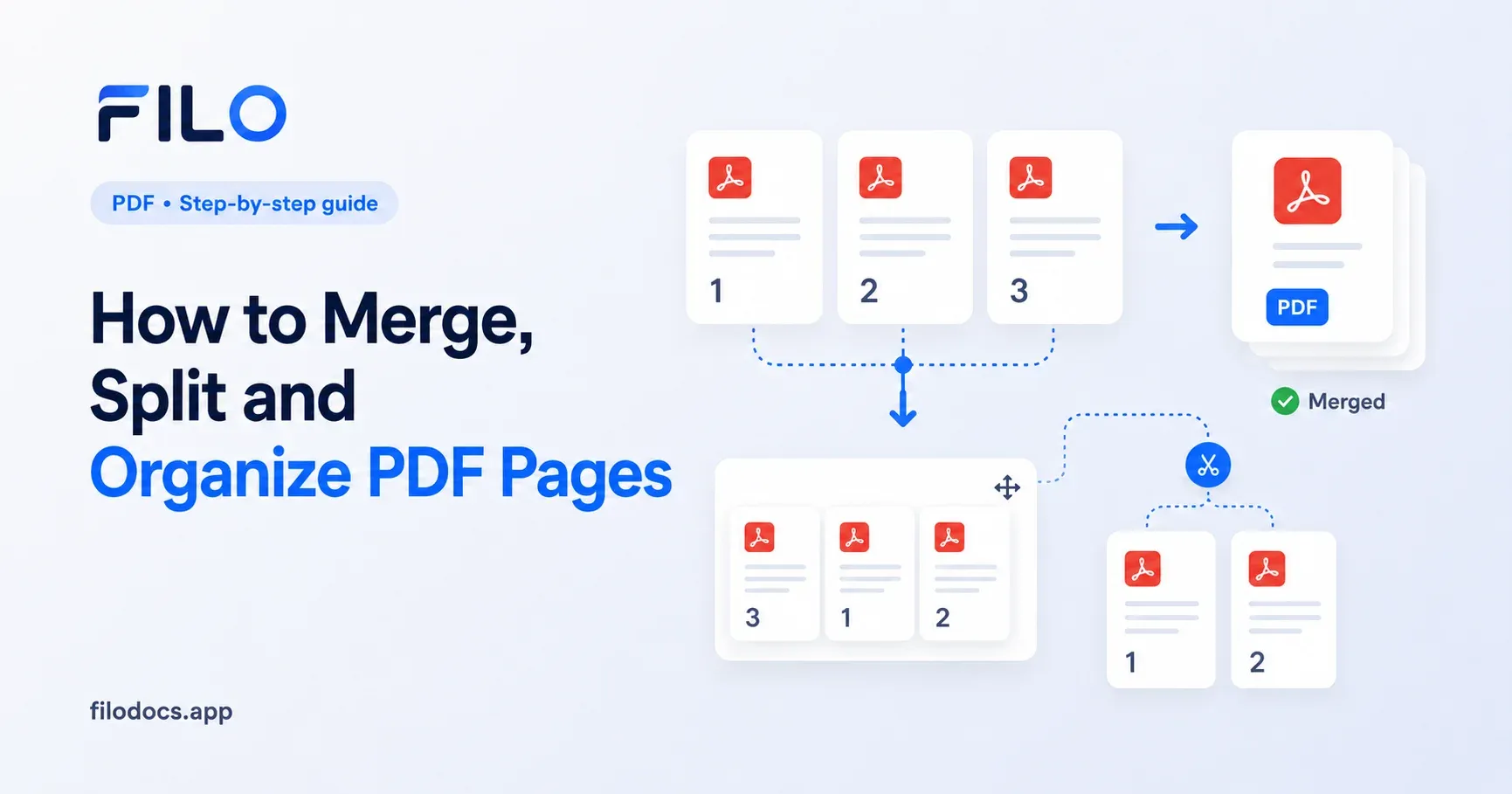
You have a 50-page vendor PDF, but your accountant only needs page 12. Or you have five separate receipts to combine into one expense report. Moving, separating, and combining PDF pages is a constant administrative chore.
To organize PDF pages, you use split tools to extract specific pages into separate files, and merge tools to combine single PDFs into a larger document. Doing this natively depends entirely on your device, but mobile apps offer the fastest offline route.
Key Takeaways
- Mac users can use the built-in Preview app to drag and drop PDF pages for free.
- Windows users can use the "Print to PDF" function in their web browser to extract pages.
- The iOS Files app lets you merge PDFs natively, but extracting single pages is a frustrating workaround.
- Web-based PDF editors require uploading your sensitive business documents to third-party servers.
Filodocs lets you batch merge and split PDFs directly on your phone with zero uploads.
How to Organize PDFs on Mac and Windows
If you are sitting at a computer, you probably have the tools you need right now. You don't need to buy expensive desktop software to handle basic file management.
The Mac Preview Method
Apple includes a built-in PDF viewer called Preview on every Mac, which includes robust page management features.
- Open your PDF in Preview.
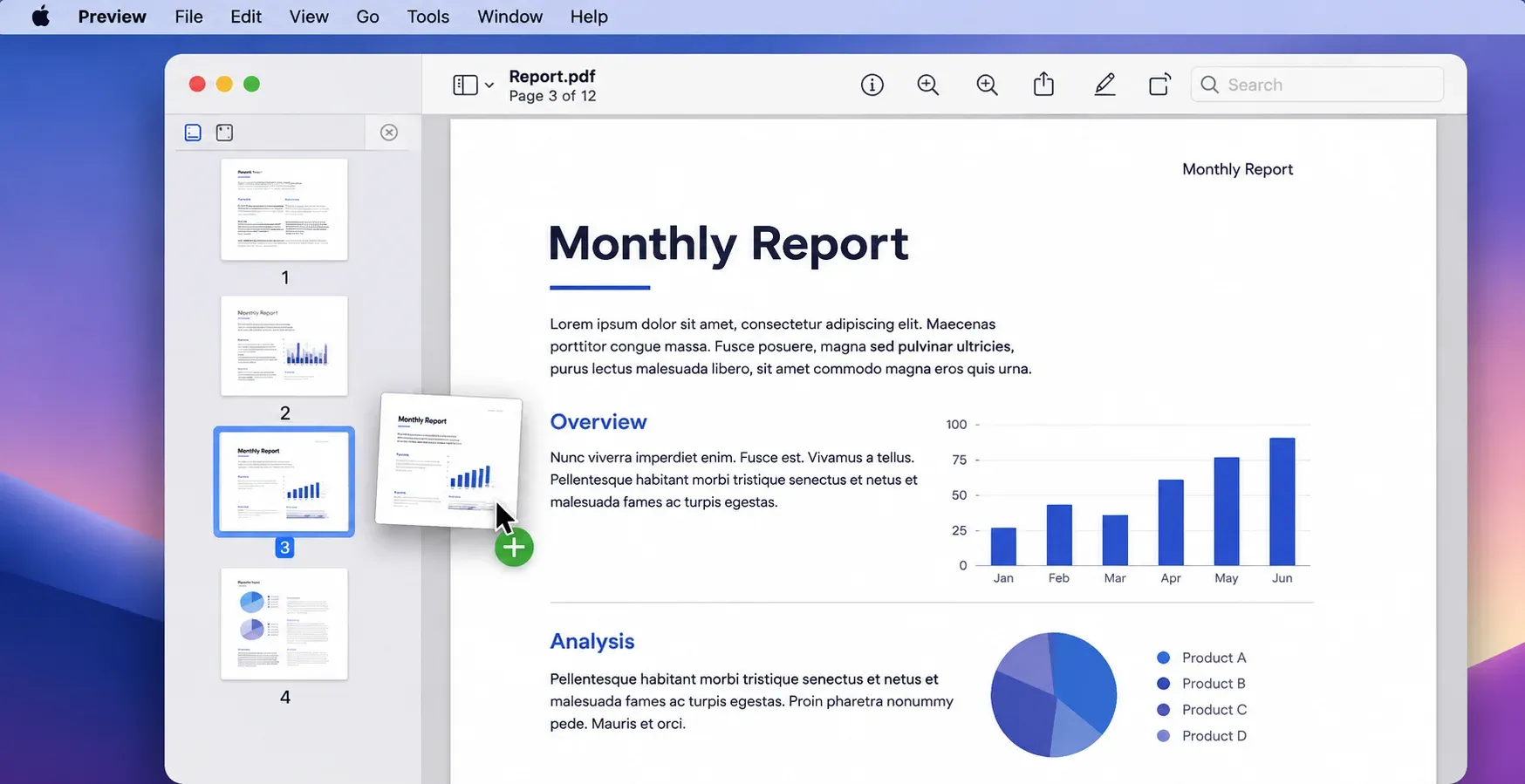
- Click View in the top menu bar, then select Thumbnails. A sidebar will appear showing every page.
- To split or extract: Click a page thumbnail and drag it directly onto your desktop. This creates a new PDF of just that page.
- To merge: Open two PDFs in Preview side-by-side. Drag a thumbnail from one document's sidebar directly into the other.
The Windows Browser Method
Windows lacks a native PDF editor comparable to Preview. However, you can use the "Print" function in Microsoft Edge or Google Chrome to extract specific pages.
- Open your PDF in your web browser.
- Press Ctrl + P to open the print menu.
- Change the printer destination to Save as PDF.
- Under the Pages section, choose "Custom" and type the exact page number you want to extract (e.g., "5-7" or "12").
- Click Save.
Need this on mobile? Desktop methods work if you are at a desk. But if you need to combine a contract and invoice from your phone, opening a laptop isn't an option. Filodocs handles PDF merging directly on mobile. No account required.
The Built-In Way on iPhone and Android
Handling business documents on a phone is standard practice. Natively organizing PDFs on a mobile device, however, is highly platform-dependent.
On iPhone: The iOS Files app has a basic merge function. Open the Files app, tap the three dots in the corner, and tap Select. Choose multiple PDFs. Tap the three dots again and hit Create PDF. This combines them into one file. Splitting requires a tedious workaround: you have to "Print" the document, pinch the screen to open a preview, unselect the pages you don't want, and share the remainder to a new file.
On Android: The Android OS does not include a native PDF editor for merging or splitting out of the box. You must download a third-party application to organize document pages.
Skip the workarounds: If you process files regularly, native mobile methods take too many taps. Filodocs puts dedicated Split and Merge buttons right on your home screen so you can bypass the iOS Files app entirely. Free on iOS and Android.
The Desktop Web Tool Dilemma
When native tools fail, people often search for web-based tools. They work well for casual, public files.
But business owners handle tax forms, signed contracts, and client IDs. Web tools require uploading these files to their servers to process them. Furthermore, free tiers on these websites frequently cap how many files you can process per day, or restrict upload sizes.
Protect Client Data: Keep sensitive business paperwork off web servers. Filodocs processes every file 100% offline on your device. Contracts and IDs stay on your phone. Filodocs never uploads anything.
How to Merge and Split PDFs in Filodocs
Filodocs combines a document scanner, image converter, and PDF toolkit into one free app. It runs entirely on your device. Nothing is uploaded. If you need to manage documents quickly, here is the exact process.
How to Split PDFs
- Open the app and tap the Split PDF icon.
- Select your PDF document from your phone's storage.
- Choose your split method. You can split by a specific page range or separate the document into single-page files.
- Tap the split button. Your new, separated files will save instantly.
How to Merge PDFs
- Tap the Merge PDF icon on the home screen.
- Select two or more PDF files from your device.
- Drag the files to reorder them exactly how you want them to appear.
- Tap the merge button to combine them into one continuous document.
The whole process takes under 30 seconds. Free on iOS and Android, no sign-up required.
Quick Answers About PDF Organization
Are online PDF mergers safe for sensitive documents?
Web tools upload your data to their servers. While many delete files after a few hours, privacy-conscious users should avoid them for confidential data. If you handle tax documents or contracts, a 100% offline tool like Filodocs is safer.
Is there a limit to how many PDFs I can merge at once?
Web tools often restrict free users to a few files or limit total file sizes. Filodocs has no per-file limits for merging because it uses your phone's processor instead of a cloud server.
Does splitting a PDF reduce its quality?
No. Extracting a page simply copies that specific page's data into a new file. The text and images remain identical to the original file.
Can I convert images to a PDF while merging? Yes. If you have a mix of photos and documents, you can use the Filodocs Image to PDF tool to turn the photos into a document first, and then merge everything together.
Get Your Files Organized
Managing PDFs shouldn't require paying for desktop software or exposing client data to web servers. Whether you use built-in OS tools or a dedicated app, keep your workflow simple.
If you process documents frequently, choose Filodocs. With a 4.8 average star rating and 100,000+ downloads, it gets the job done without friction. No account to create, no files to upload.
.webp)

