
You have 50 image files, a stack of invoices, and a few spreadsheets. You need them all in PDF format right now. Doing this one file at a time wastes hours.
To mass convert files to PDF, you can use built-in tools like Windows Print to PDF, macOS Quick Actions, or batch converter mobile apps. The fastest offline method on mobile is using a dedicated PDF toolkit like Filo, which converts dozens of files at once without uploading them.
Key Takeaways
- Native tools like macOS Quick Actions work great for small batches but often scramble file order on large folders.
- Web converters require you to upload your files, creating serious privacy risks for sensitive documents like IDs or contracts.
- Desktop software handles bulk well but usually requires a paid monthly subscription.
- Mobile batching is the fastest route for files already on your phone. Filo handles 50+ files at once, entirely offline.
Why Native Tools Struggle with Bulk
Your computer and phone have built-in ways to create PDFs. The problem is scale. Converting a single image is easy. Converting 100 images into a single, organized PDF file usually crashes native apps or requires tedious manual sorting.
If you only have a few files, here is how to use the free tools already on your computer.
Method 1: How to Batch Convert on macOS (Built-in)
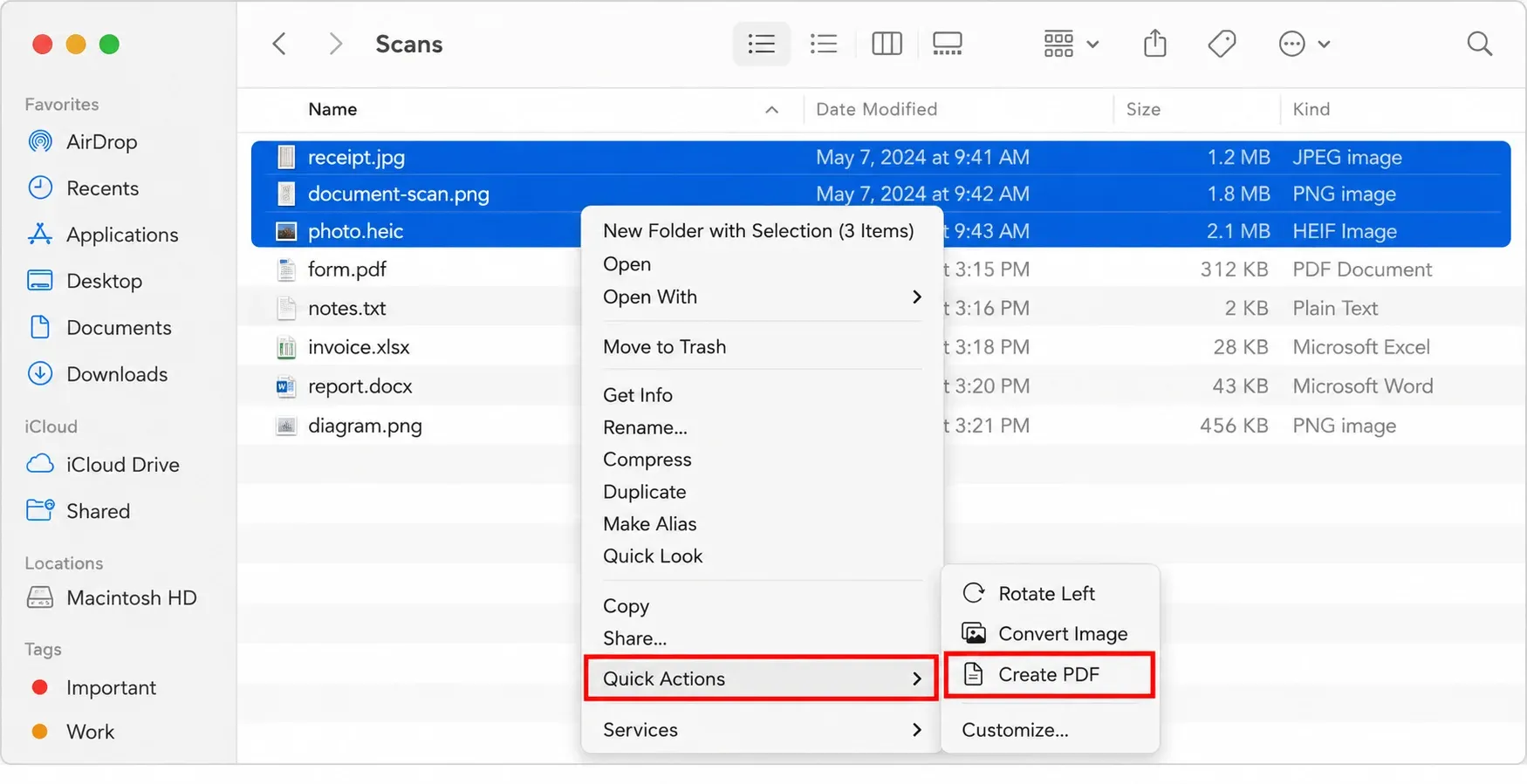
Mac users can use Finder's built-in shortcuts to turn images into a single PDF.
- Open Finder and select the images you want to convert.
- Right-click the highlighted files.
- Select Quick Actions from the menu.
- Click Create PDF.
Your Mac will generate a new PDF in the same folder. The main drawback here is ordering. As noted in Apple's official Quick Actions documentation, Finder compiles the files based on how they were selected, which means your pages might be out of order.
Method 2: How to Mass Convert on Windows (Print to PDF)
Windows does not have a dedicated PDF button in File Explorer, but you can use the built-in Microsoft Print to PDF feature to achieve the same result.
- Highlight your images in File Explorer.
- Right-click and select Print.
- In the printer dropdown menu, choose Microsoft Print to PDF.
- Adjust the layout (e.g., one picture per page) and click Print.
- Name your new PDF and save it.
This works for basic JPG or PNG images. It does not work well if you are trying to combine different file types, like mixing images with Word documents.
The Privacy Problem with Online PDF Converters
Search for a batch converter, and you will find dozens of web-based tools like Online2PDF or PDF24. These are popular because you can just drag and drop your files into the browser.
However, you must upload your files to their servers to process them. If you are converting tax documents, client contracts, or medical records, this is a major security risk. Furthermore, most free web tools cap you at 20 files per batch and impose strict file size limits.
Contracts, IDs, and medical paperwork should stay on your device. Filo never uploads anything to a web server.
Conversion Methods Compared
| Conversion Method | Batch Size Limit | Privacy (Upload Required?) | Cost |
|---|---|---|---|
| macOS Quick Actions | Varies by memory | No (Offline) | Free (Built-in) |
| Web Converters | Usually ~20 files | Yes (Server upload) | Free (With ads) |
| Adobe Acrobat Pro | Unlimited | No (Offline) | Paid subscription |
| Filo App | 50+ files | No (100% Offline) | Free |
Free on Android and iOS. No account to create, no files to upload.
How to Mass Convert Files to PDF in Filo
If you handle receipts for accounting or invoices for clients on your phone, moving them to a computer just to convert them wastes time. You can batch convert up to 50+ files at once directly on your iOS or Android device.
Here is how to do this in Filo:
- Open the app and tap the Image to PDF tool.
- Select your files. Pick dozens of HEIC, JPG, or PNG files straight from your camera roll.
- Arrange the order. Drag and drop the thumbnails to get the exact sequence you want.
- Adjust settings. Choose your page size, margins, and compression levels.
- Tap Convert.
The whole process takes under 30 seconds. Free on iOS and Android, no sign-up required.
Filo maintains a 4.8 average rating with over 100,000 downloads because the promise is simple: 100% offline, zero server uploads, and no watermarks on your final documents.
How to Batch Convert Word Documents to PDF Offline
Many Microsoft Tech Community users ask how to bulk convert Word documents (.doc or .docx) without uploading them to the web.
If you have a paid Adobe Acrobat subscription, you can use the Action Wizard to automate this on a desktop. If you need a free route, you can run a VBA macro directly inside Microsoft Word to command the software to "Save As PDF" for an entire folder. This requires basic coding knowledge but keeps your corporate documents completely offline and secure.
Quick Answers (FAQ)
How do I combine multiple photos into one PDF?
Use Filo's Image to PDF tool. Select your JPG, PNG, or HEIC photos from your gallery, drag them into the correct order on the preview screen, and tap convert. The app binds them into a single, multi-page document.
Is it safe to upload files to an online PDF converter?
It depends on the file. For public images, it is generally fine. For sensitive business documents, IDs, or signed contracts, uploading to a web server introduces unnecessary risk. Use an offline tool instead.
Are there file size limits when batch converting?
Web tools almost always restrict total upload size (often 50MB or 100MB). Device-based tools like Filo have no hard file size limits; they are only restricted by your phone's available storage and memory.
Does batch converting to PDF reduce file quality?
It can. Most tools apply default compression to keep the final PDF size manageable. Filo gives you direct control over the compression slider, so your text stays sharp and your files remain legible.
Stop Uploading Your Files
Mass converting files shouldn't require an expensive monthly subscription or forcing you to upload your private data to a random web server. If you only have two or three files, use the built-in Mac or Windows tools.
If you need to convert dozens of files on your phone quickly and safely, get the right tool for the job.
Download Filo. Free on iOS and Android. No account to create, no files to upload.
.webp)
